User Guide
ArccosAir
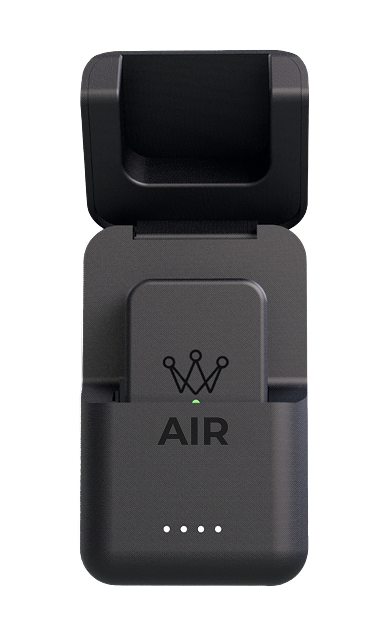
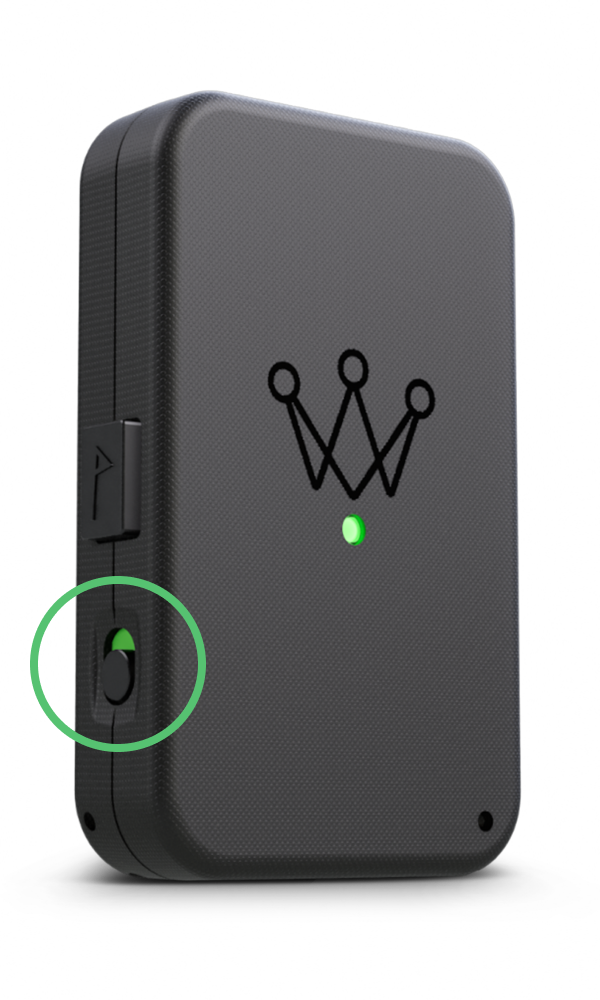
Turning on Arccos Air
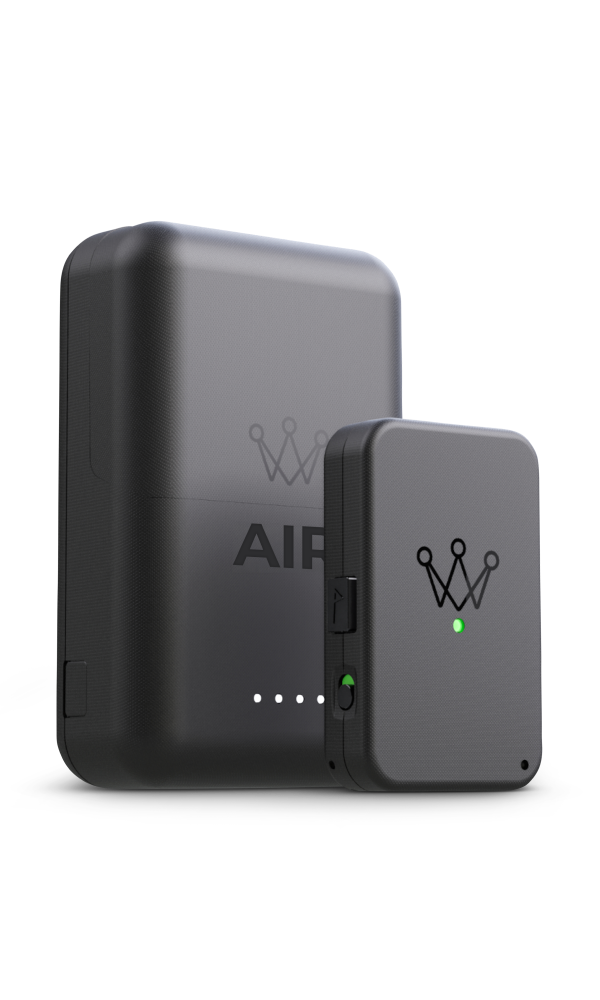
- To power on Arccos Air device, slide the power switch so that the switch displays green. Once the device powers on, you will see the light turn on.
- Once the device has successfully gone through the pairing process, we recommend turning your Arccos Air on prior to the first tee so it has time to properly acquire a GPS signal.
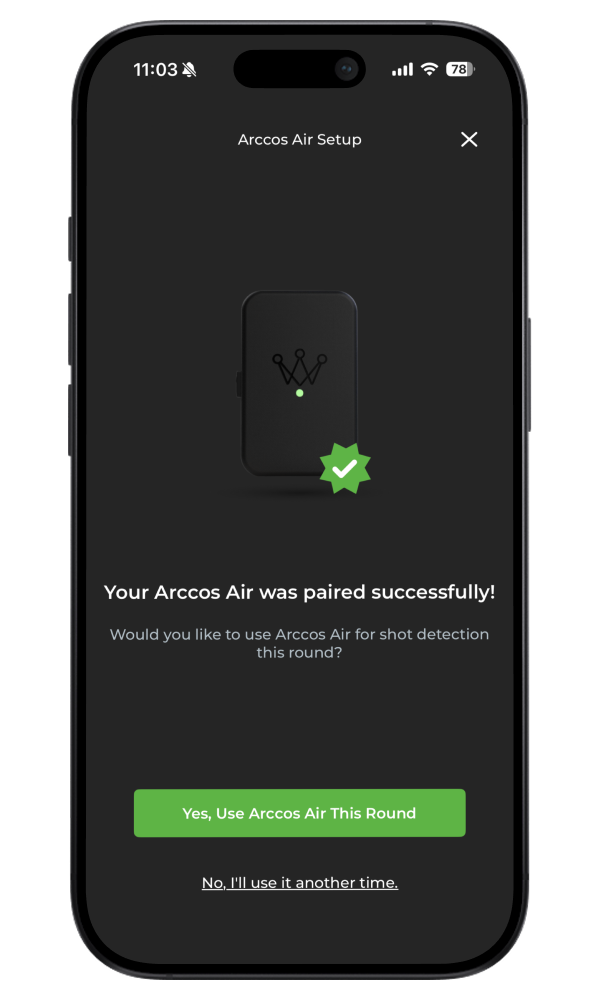
Pairing Arccos Air
- Enable Bluetooth on your phone and open the Arccos app.
- Connect Arccos Air if prompted in the app.
- If not prompted, on the “Start Round” screen of the app, tap “Pair Arccos Air.”
- Proceed by tapping “Air” on Start Round page under shot detection mode > “Pair Your Arccos Air” > “Yes, Use Arccos Air This Round”
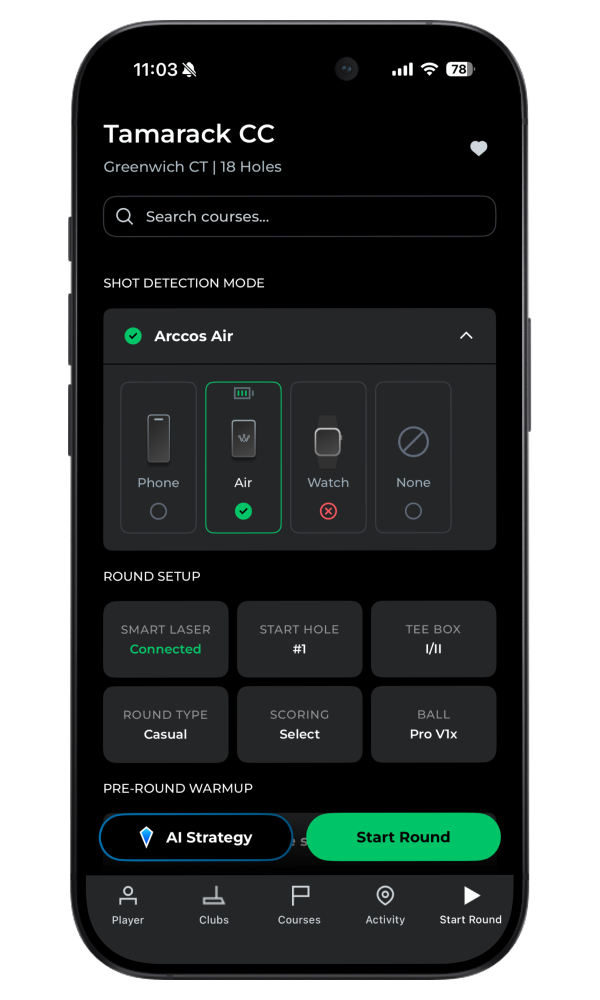
Starting a Round
- On the ‘Start Round’ screen, select your course, and tap “Start Round.”
- Wait for Arccos Air to optimize GPS accuracy, then you can put your phone away.
- For the best experience, place Arccos Air in the front lead pocket.
During a Round
- Play with Arccos Air in your front lead pocket to automatically record and sync shots. The device seamlessly streams data to the Arccos app via Bluetooth when in range, allowing review at any time.
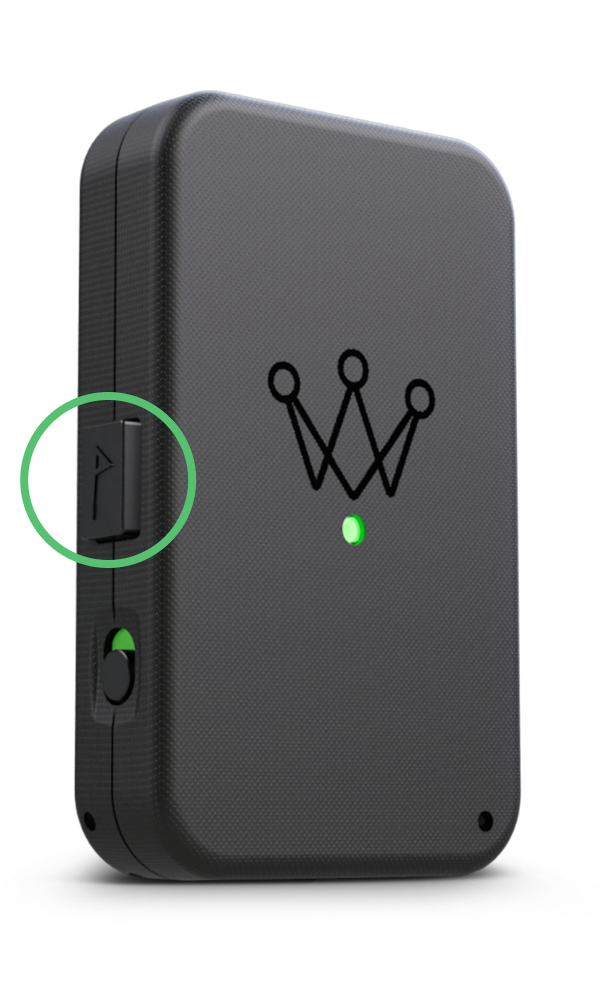
- Arccos Air features a button for easily marking the pin location, enhancing the accuracy of approach, short game, and putting stats. To mark the pin, stand still next to the hole while pressing the button on the device.
After a Round
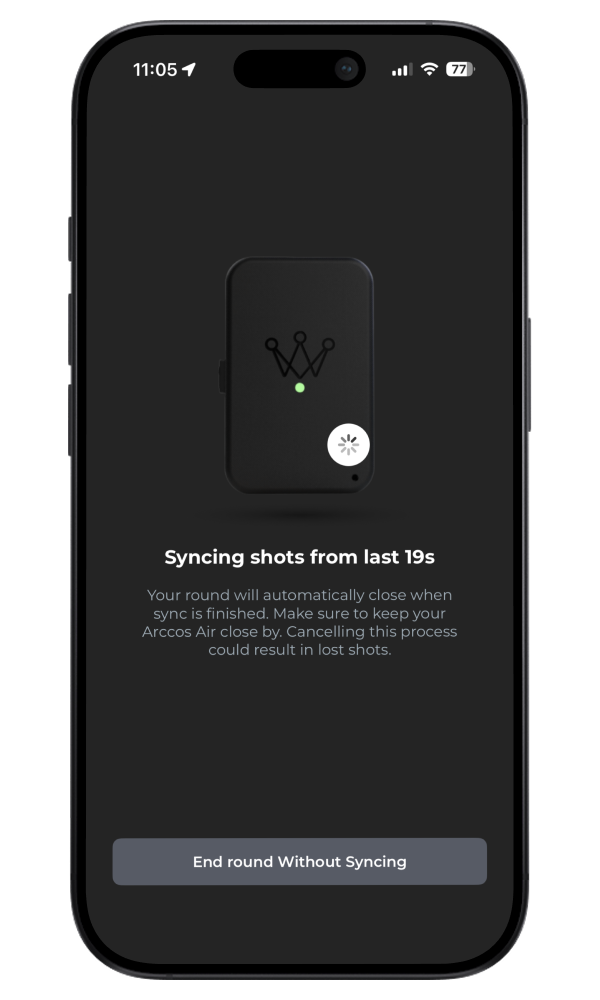
- To finish syncing, end the round on the Arccos App.
- Wait until Arccos Air has completed the syncing process.
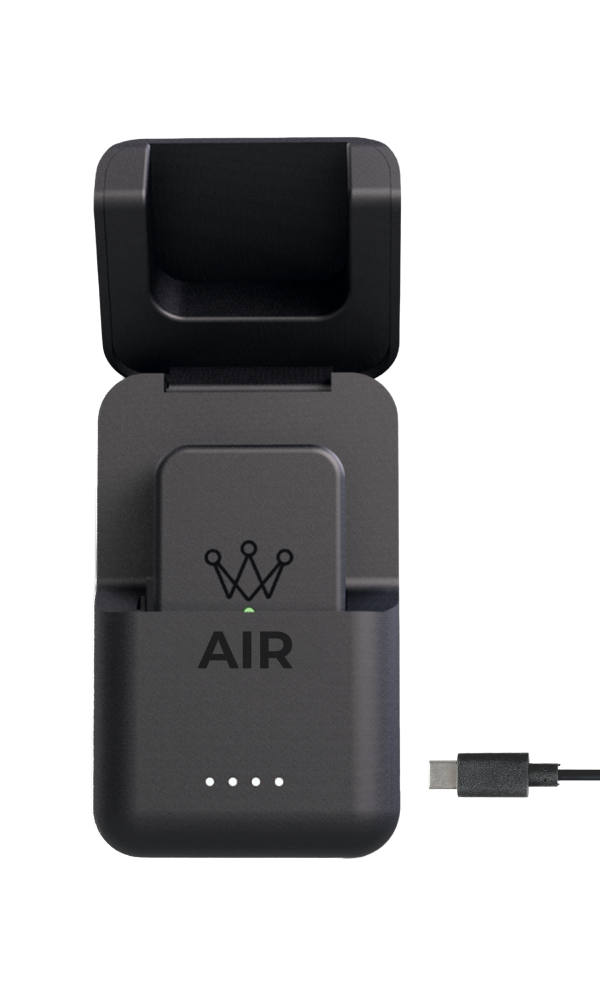
- Turn off Arccos Air and place it in the Charging Case so it’s ready for your next round. If Arccos Air is left on when you put it in the case, it will automatically turn off. When you take it out, turn it back on by pressing the Flag button, or by switching the power off and back on.
Charging And Storage
- If you put Arccos Air in the Charging Case while it’s still on, it will turn off automatically. To turn it back on, press the Flag button or toggle the power switch.
- When you place Arccos Air in the Charging Case, the LEDs will light up. They stay on while charging and turn off once the device is fully charged.
- To charge the Charging Case use the included USB-C cord. It will take ~4 hrs to fully charge in normal conditions.
- For optimal charging, please plug into a wall outlet using a reliable AC adapter. Charging the case via a computer USB will not be sufficient.
Compatibility
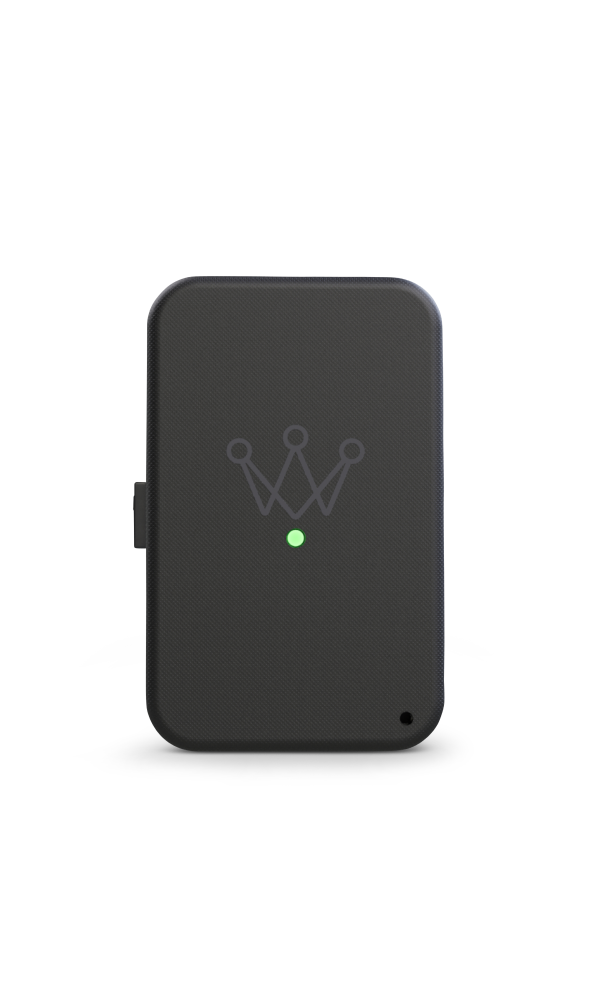
- Arccos Air is designed exclusively for users of the Arccos platform. Smart Sensors are not required, however Arccos Air is compatible with Arccos Smart Sensors, Arccos Smart Grips, and OEM smart sets (e.g. Cobra, PING, TaylorMade, Srixon/Cleveland Golf, etc.) using the Arccos app.
- Arccos Air requires a player to have the Arccos app installed on their smartphone.
- Arccos Air is not compatible with Arccos 1st generation Bluetooth sensors.
- For more information and a list of supported devices and platforms, visit support.arccosgolf.com.
Tips and Tricks
- Visit support.arccosgolf.com for more.
- Keep Arccos Air on your person to ensure accurate shot detection.
- If the Arccos Air LED turns red, it means your device has low battery.
- When the Charging Case is fully charged it will power Arccos Air for up to 12 rounds of golf.
LED Glossary
Air Device
| LED | Blinking | Solid |
|---|---|---|
| Green |
✓ GPS Signal ✗ Phone Connection |
✓ GPS Signal ✓ Phone Connection |
| Blue |
✗ GPS Signal ✗ Phone Connection |
✗ GPS Signal ✓ Phone Connection |
| Red | Battery at 20% or less | Updating firmware |
Charging Case — Charging Arccos Air
| LED (white)* | Charge % |
|---|---|
| ● ● ● ● | Battery between 75% – 100% |
| ● ● ● | Battery between 50% – 75% |
| ● ● | Battery between 25% – 50% |
| ● (blinking) | Battery at 25% or less |
| ● (blinking) | Blinking at 10% or less |
Charging the Charging Case
| LED | Blinking | Solid |
|---|---|---|
| White | Charging | Fully charged |
App Icon Glossary
| Icon | Meaning |
|---|---|
 |
Device is connected |
 |
Device is disconnected |
 |
Syncing data |
 |
Alert — tap to view |
 |
Device has low battery |
 |
Device has no GPS |
 |
Device is disconnected |